Appearance
Signing in and finding your way
Signing in
Go to app.psms.ph and sign in with the username and password your office's Account Holder gave you.
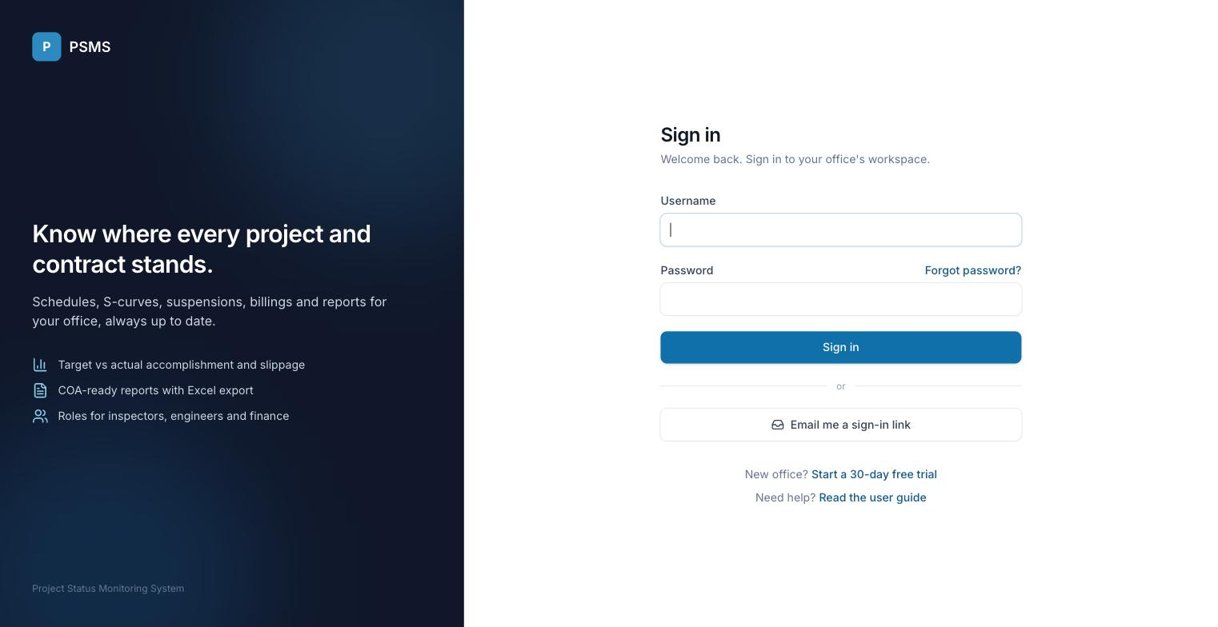
- Sign in without a password: click Email me a sign-in link and enter the email on your PSMS account. Open the link in the email within 15 minutes and click Continue. Each link works once. If several accounts share your email, you'll get one link per account, each naming its username. (PSMS administrator accounts must use their password.)
- Forgot your password? Click Forgot password? on the sign-in page and enter the email on your PSMS account. You'll get a link to set a new password; it works once, within 24 hours. The email names the account it's for, so if several accounts share your email you'll get one per account. No email on your account? Ask your office's Account Holder to set a new password for you (see Users).
- Change your password any time from the menu under your name (top right) → Change password.
- New office? Choose Start a 30-day free trial on the sign-in page to register your office. You'll need the office's address, phone, email and a contact person. You become its Account Holder and can add your team.
The layout
- Sidebar (left): your office name and renewal date, then the main pages (Dashboard, Contracts, Projects, Reports, Forum), the Setup lists, and Office pages if you're an Account Holder. On a phone, open it with the menu button (☰) at the top left. Help & user guide at the bottom opens this guide.
- Top bar: the search box, the ? button and your name. ? opens the page of this guide for the screen you're on. Click your name for My activity, Change password, Help & user guide and Log out.
Search (Ctrl K / ⌘ K)
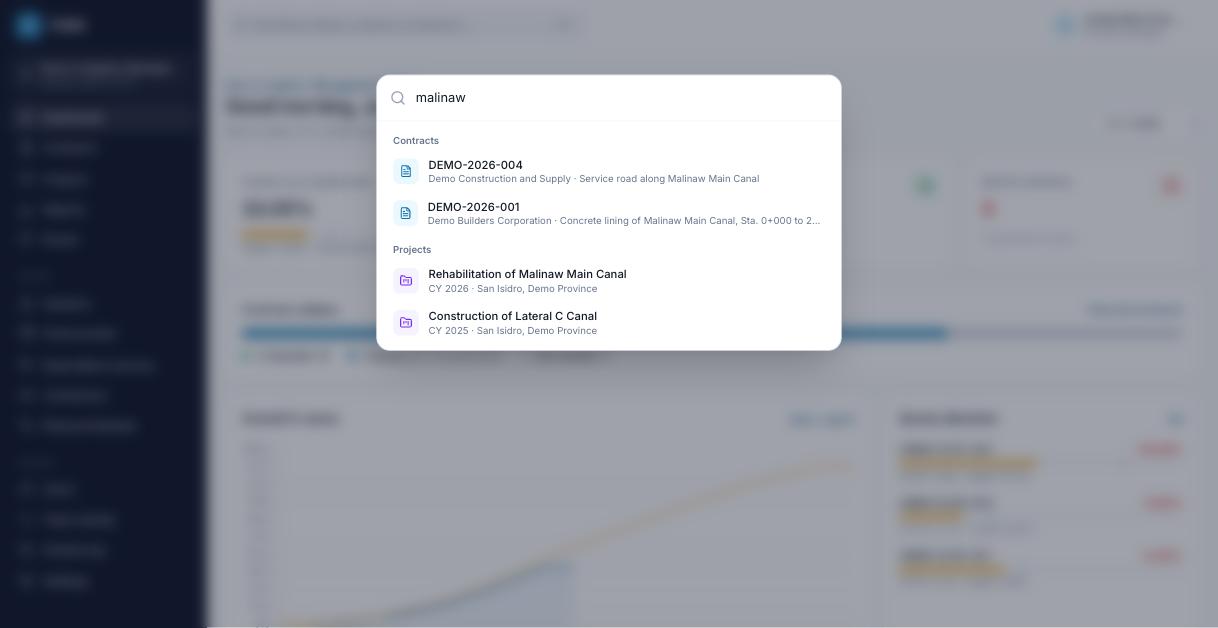
Press Ctrl K (Windows) or ⌘ K (Mac), or click the search box, and start typing a contract number, project, contractor, system or municipality. Results appear as you type; click one to open it. Press Esc to close.
Adding and editing records
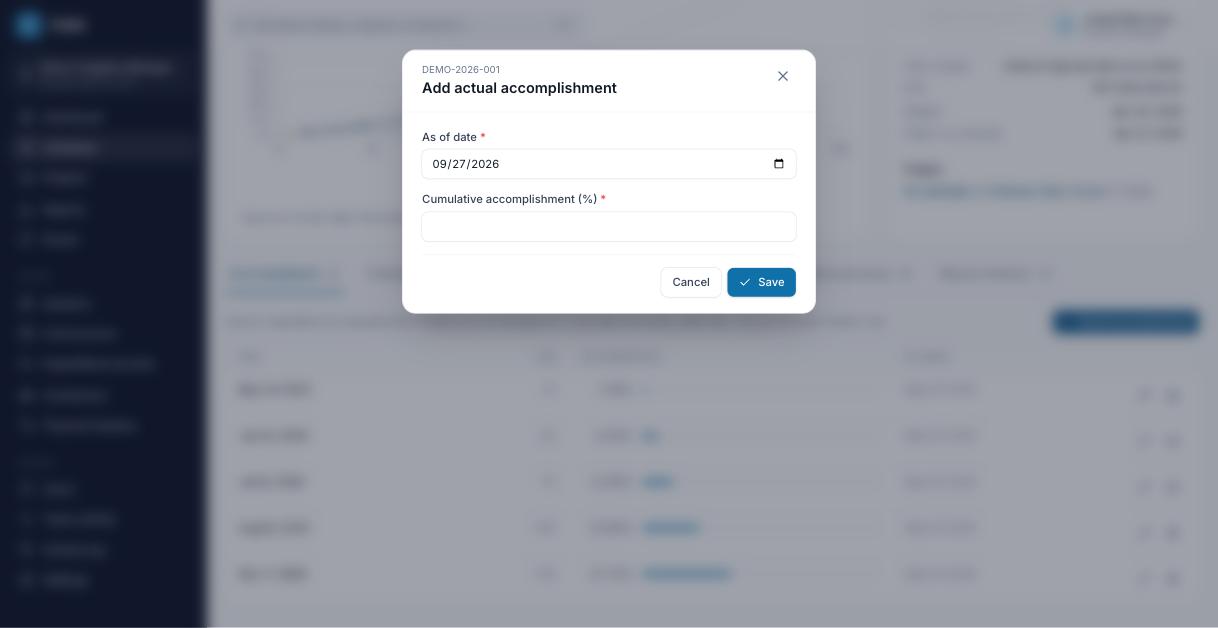
Buttons like Record accomplishment, Add billing or the pencil icon open a small dialog over the page. Fill it in and click Save; the page refreshes and a confirmation appears in the bottom-right corner. If something is wrong (for example a date in the future), the dialog stays open and shows what to fix.
Deleting always asks you to confirm first. Contracts, projects, systems, fund sources, expenditures and variation orders are not permanently erased: they disappear from lists and reports but stay in the database, so the PSMS administrator can recover them if needed. Items that other records still use (for example a contractor with contracts) can't be deleted.
Dates and "as of"
Most pages and every report have an As of date. PSMS shows everything as it stood on that date: accomplishment, suspensions, variation orders, time extensions and billings recorded after it are left out. It defaults to today.