Appearance
Contracts
The contracts list
Contracts in the sidebar lists every contract with its progress, slippage and status.
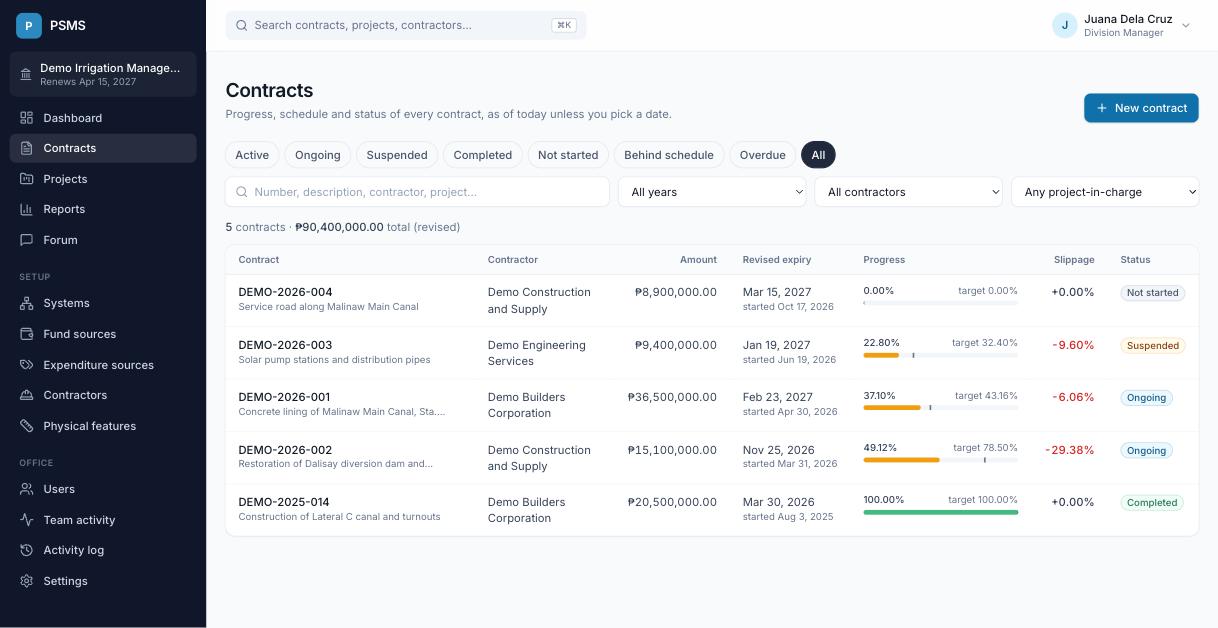
- Status chips (Active, Ongoing, Suspended, Completed, Not started, Behind schedule, Overdue) filter the list in one click.
- Search and filters narrow by contract number, description, contractor, project, year, contractor or project-in-charge.
- Progress bars show actual accomplishment, with a small mark at the target. The bar is amber when the contract is behind.
- Click any row to open the contract.
Statuses:
| Status | Meaning |
|---|---|
| Not started | Today is before the start date |
| Ongoing | Started and not yet 100% |
| Suspended | Work is suspended and hasn't resumed |
| Completed | An accomplishment entry of 100% has been recorded |
| Overdue (extra badge) | Not completed and past the revised expiry date |
Adding a contract
Account Holders, Project Inspectors and Engineering Personnel click New contract (or New contract on a project's page, which fills in the project).
- Contract ID / number must be unique within your office.
- Projects: usually one. Select several only when projects are clustered under one contract.
- Contractor: choose from the shared contractor list, or add the contractor first.
- Project in charge: the person monitoring the contract; defaults to you.
- Amount, ABC, start date (effectivity) and duration in calendar days; optional signing and notice dates and the contract document.
- Sites on the map are added after saving, under Sites on the contract's page: one or several work sites, each with a description. See Adding a contract's sites. Without any, the contract appears at its municipality's center.
The contract page
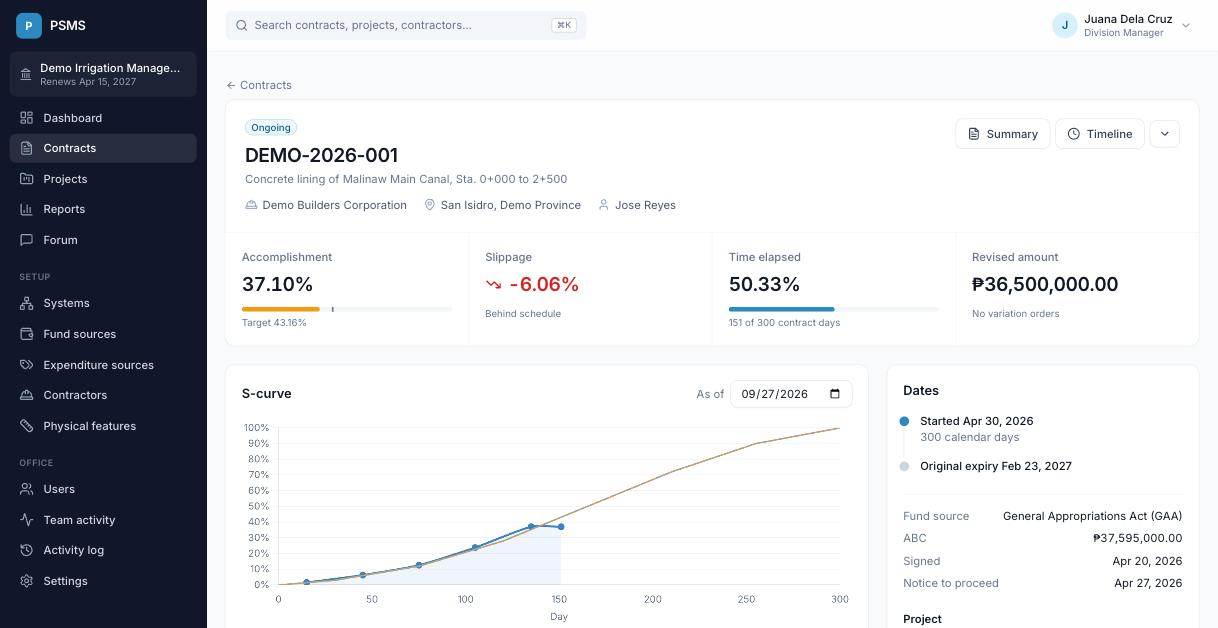
The header shows the status, contractor, location and project-in-charge, then four figures: accomplishment (with target), slippage, time elapsed and revised amount. Change the As of date above the chart to see the contract as it stood on another day.
The S-curve has three lines:
- Original plan (grey, dashed): the schedule you entered.
- Revised plan (amber): the original plan paused during suspensions. This is the target PSMS uses.
- Actual (blue): the accomplishment you've recorded.
To look closer at a period, use the zoom buttons above the chart, then drag the chart left or right to move along it. Holding Ctrl (⌘ on a Mac) while turning the mouse wheel, or pinching on a trackpad, zooms around the pointer. Show all, or a double-click on the chart, brings back the whole curve.
The Dates panel lists the start, original expiry, expiry with suspensions and with time extensions, and the completion date. Summary and Timeline open printable views with Excel export.
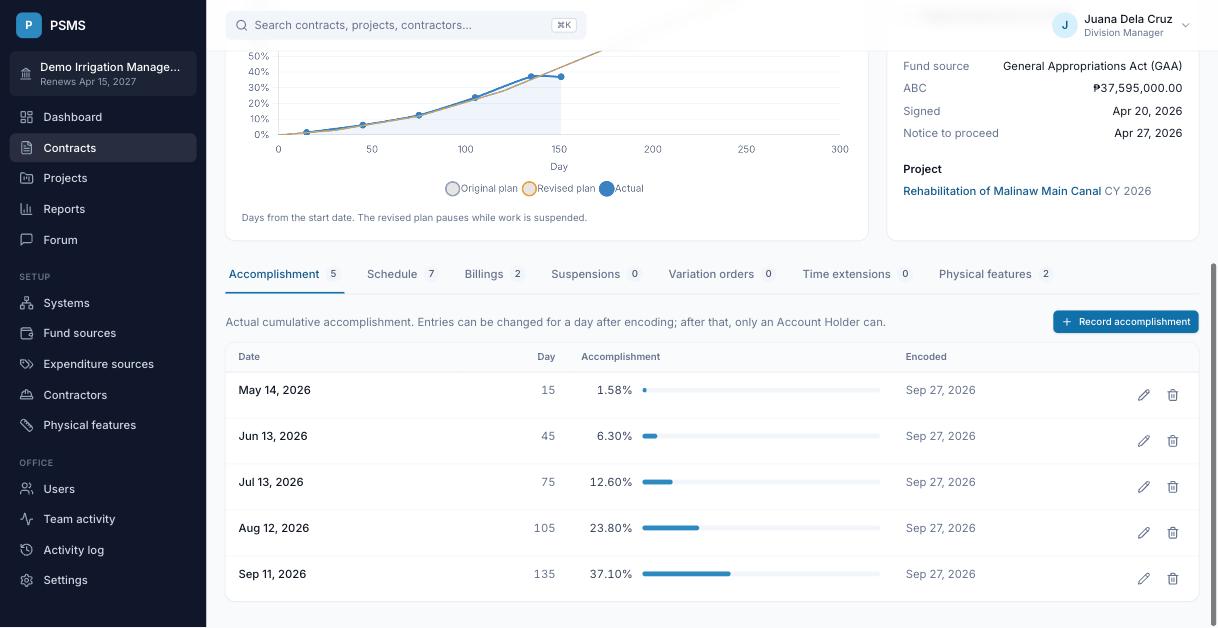
Below that, tabs hold the contract's records. The number on each tab is how many there are.
Schedule (planned accomplishment)
The planned cumulative % of work at key dates, the points of the original S-curve. Add a value for each milestone (for example 3% at day 30, 50% at day 165, 100% at the end). Values are 0–100, one per date. Between points PSMS draws straight lines.
Importing the schedule from Excel
Instead of typing each point, Import from Excel on the Schedule tab brings the whole S-curve in at once. Account Holders, Project Inspectors and Engineering Personnel can use it.
- Download Excel file gives you a sheet for this contract: its start date, each month end and its expiry, ready for the planned cumulative % (or the current schedule, if the contract already has one). Fill it in, and add or remove rows as you need.
- Choose the file, or copy the date and % columns from any Excel sheet of your own and paste them into the box.
- Click Check. PSMS lists what it read. Nothing is saved yet.
- If a row has a problem, it is marked with the reason. Correct it in the box and check again.
- Click Import.
What PSMS accepts:
- Two columns: the date and the planned cumulative %. In a file, they are the first two columns of the first sheet; title and heading rows are skipped. Only .xlsx files can be read: save an older .xls file as .xlsx, or paste.
- Dates as Excel dates, or written like
2026-05-04,5/4/2026(month first) orMay 4, 2026. A day number works too (day 1 is the start date). - Percentages as
12.5,12.5%, or cells formatted as a percentage. - Rows with a date but no % are left out, so you don't have to delete unused rows of the Excel file.
- Values must be 0–100, one per date, and can't go down from one date to the next. Dates before the start date are not accepted. Up to 500 rows.
If the contract already has a schedule, you choose between Replace the schedule (the old values are removed) and Add to the schedule (old values stay; a date that is in both takes the imported value). Adding isn't offered when it would make the schedule go down somewhere. The import is recorded in the activity log.
Accomplishment (actual)
Click Record accomplishment and enter the cumulative % of work done as of a date.
- The date can't be in the future.
- Values must be 0–100 and can't go down: an entry can't be lower than an earlier one or higher than a later one.
- You can't record accomplishment on a date when the contract is suspended.
- One entry per date; to correct an entry, edit it.
- Entries can be changed for a day; after that only an Account Holder can (why).
When an entry reaches 100%, the contract becomes Completed on that date.
Billings (financial accomplishment)
Financial Encoders and Account Holders record billings as cumulative amounts: the total billed so far, not the amount of this billing. PSMS works out the % from the revised contract amount on the billing date. You can attach the billing statement.
Suspensions and resumes
When work is suspended, click Suspend work and enter the date and reason. The contract shows as Suspended, the revised plan stops advancing, and each suspended day moves the expiry date by a day.
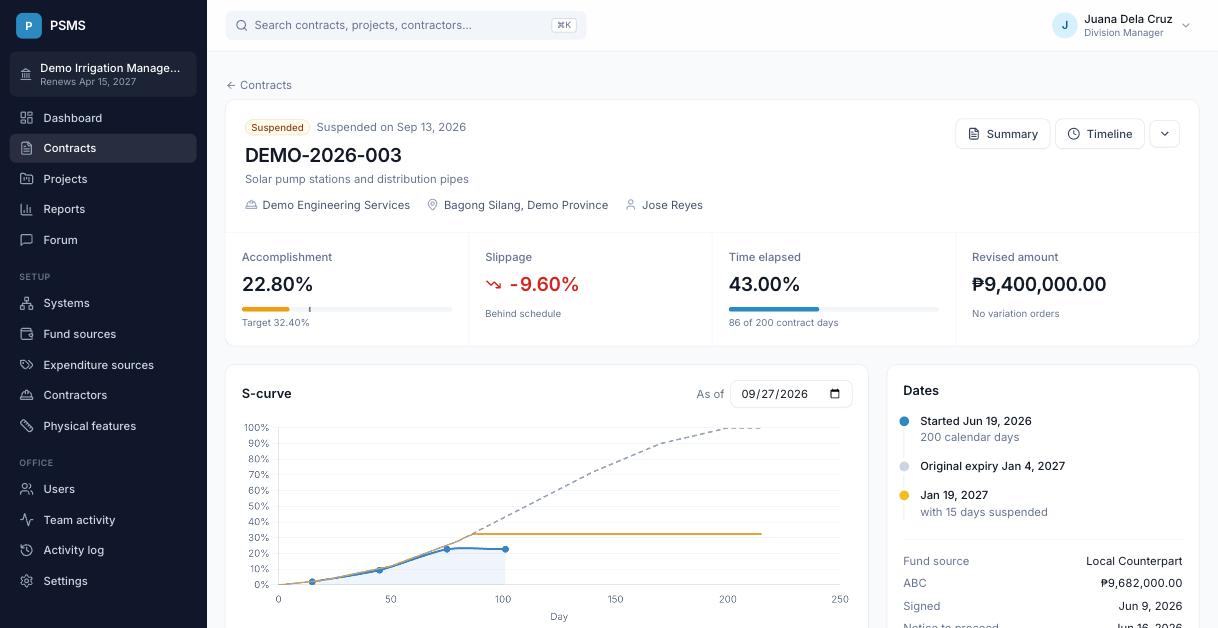
When work restarts, click Resume on the suspension and enter the resume date.
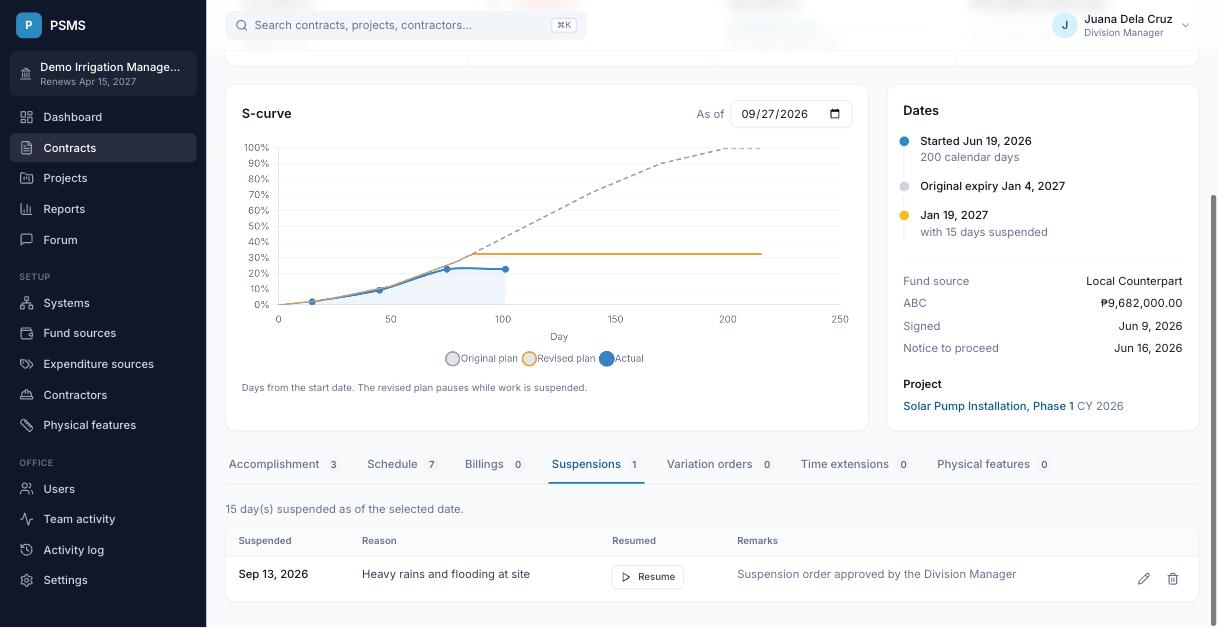
- A suspension can't start before the contract's start date, while it's already suspended, or after it was completed.
- The resume date must be on or after the suspension date, and before the next suspension.
Variation orders
A variation order changes the contract amount. Enter the effective date and the revised contract amount; PSMS numbers them automatically (VO 1, VO 2, …). From its effective date the latest order's amount replaces the original amount in progress, billings and reports.
Time extensions
Approved time extensions add days to the contract time. Enter the request and approval dates and the number of days. They count from the approval date. Whether the revised expiry in reports uses suspensions or time extensions is an office setting.
Physical features
Measurable work items such as metres of canal lining or number of turnouts. Choose the item, the date and the cumulative quantity. Quantities can't go down over time. The items themselves are set up under Setup → Physical features.
Photos
Site photos show progress on the ground. Account Holders, Project Inspectors and Engineering Personnel can add them with Add photos on the Photos tab, or with Add in an accomplishment entry's Photos column, which links the photos to that entry.
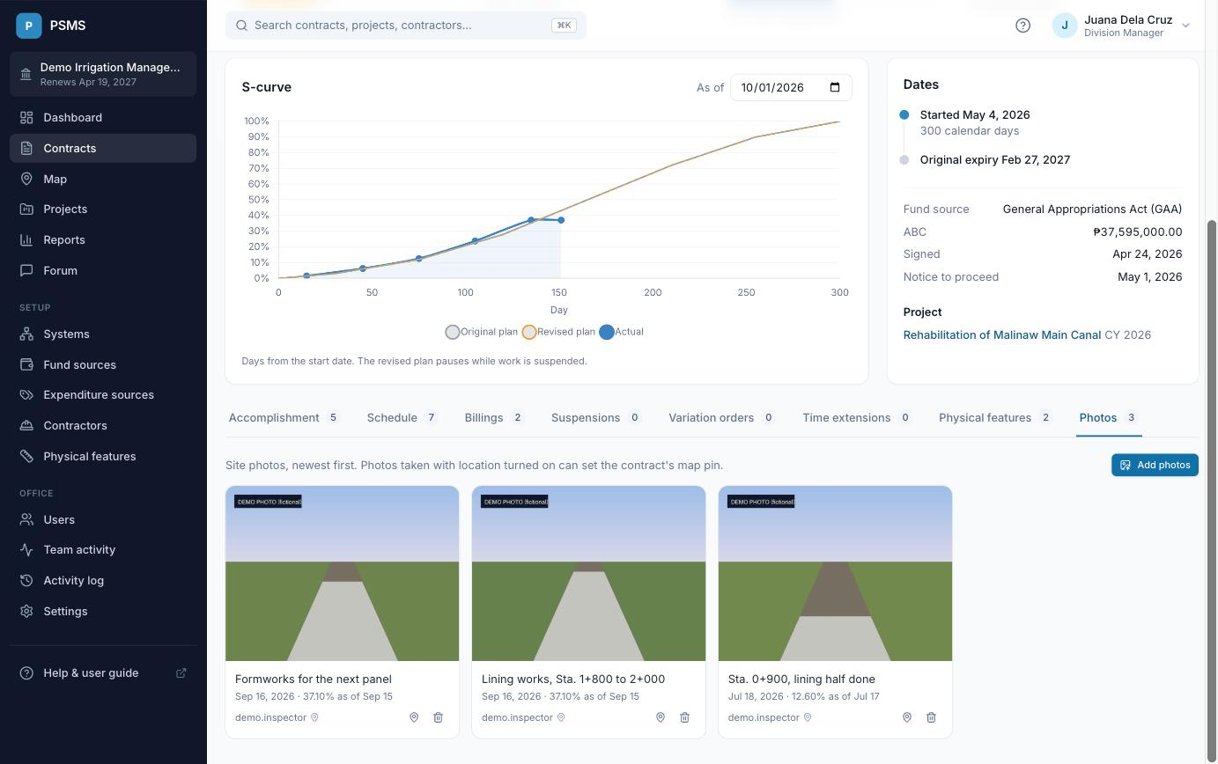
- Choose several photos at once, or drop them on the page. On a phone you can take them with the camera straight away. JPEG, PNG, WebP and iPhone (HEIC) photos up to 10 MB each are accepted. Each photo uploads on its own, so one bad file doesn't stop the rest.
- Optionally link the batch to an accomplishment entry and add a caption.
- Click a photo to see it full size. Use the arrow keys (or the arrows on screen) to move between photos, and Esc to close.
- Photos are resized to at most 2048 pixels and everything embedded in the file is removed (camera details and so on). PSMS keeps only the date it was taken and where, if the camera recorded a location.
- Only users of your office can open your photos.
- Deleting a photo follows the one-day rule: after a day, only an Account Holder can.
Adding a site from a photo. If the contract has no sites yet and a photo has a location, the Photos tab offers Add as a site. Account Holders, Project Inspectors and Engineering Personnel can also use the pin button on any photo with a location. Either opens the Add site dialog with the photo's location and caption filled in; check the description and save. Turn on location in your phone's camera settings so photos record where they were taken.
Documents
The Documents tab keeps the contract's paperwork with its figures: the agreement, notice of award, notice to proceed, program of work, orders, billings, statements of work accomplished, inspection reports and certificates.
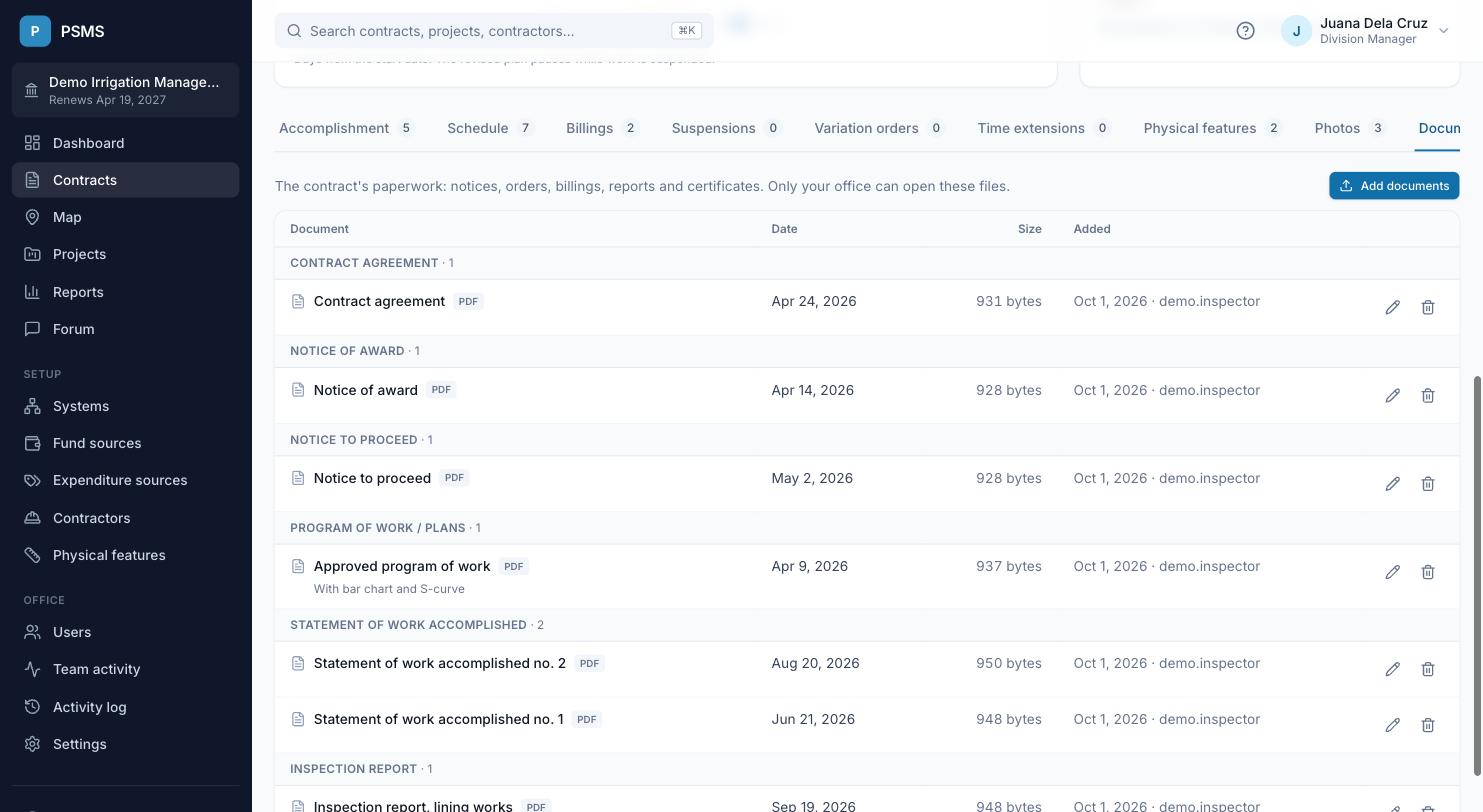
Everyone in the office can open the files. Account Holders and Project Inspectors can add them with Add documents.
- Choose several files at once, or drop them on the page. PDF, Word, Excel, JPEG, PNG and TIFF files up to 25 MB each are accepted. Each file uploads on its own, so one bad file doesn't stop the rest.
- Every file gets a title (it starts as the file name; change it to something your office will recognise) and a document type. The tab groups documents by type.
- Optionally give the date on the document and a note. Files chosen together share the type, date and note, so upload different types in separate batches.
- Belongs to attaches the file to a variation order, time extension or suspension. The file then also shows beside that record on its own tab, where Attach adds a file straight to it.
- Click a title to open the file. PDFs and images open in the browser; Word and Excel files download.
- Use the pencil to change a document's details and the bin to delete it. Both follow the one-day rule: after a day, only an Account Holder can. To replace a file, delete it and upload the new one.
- Only users of your office can open your documents. Adding and deleting them is recorded in the activity log.
A contract document attached on the contract form in the past still shows here, under Attached to the contract record.
Timeline and summary
- Timeline lists each suspension with the contract days used before it, days remaining, days suspended and resume date.
- Summary is the one-page contract status (the 14 standard items: contract time, effectivity, expiry dates, days elapsed and suspended, time extensions, % time elapsed, % accomplished, % programmed, % slippage) plus physical features.
Both have an As of date and an Excel download.
Deleting a contract
Account Holders, Project Inspectors and Engineering Personnel can delete a contract: on the contract page, open the ▾ menu next to Timeline and choose Delete contract, then confirm.
- The contract and all its records disappear from the contracts list, the dashboard and every report, but nothing is erased. If it was deleted by mistake, ask the PSMS administrator to restore it; it comes back with all its records.
- Its contract number becomes free, so you can add a corrected contract with the same number. (A contract that was deleted can't be restored while another contract uses its number.)
- The deletion is recorded in the activity log.
Deleting a single record instead
To remove one wrong entry (an accomplishment, a billing, a suspension...), use the trash icon on its row in the tabs. These records are erased for good, except variation orders, which the administrator can restore. Accomplishment, billing, variation order and physical feature entries can only be deleted within one day of entering them, unless you're an Account Holder.