Appearance
Custom reports
When the standard reports don't show exactly what you need, build your own: choose the columns, filter the rows, group them with subtotals, add a chart, and save it to run again any time. Anyone can build custom reports, Viewers included.
Open Reports → Custom reports, or click Build a custom report on the Reports page.
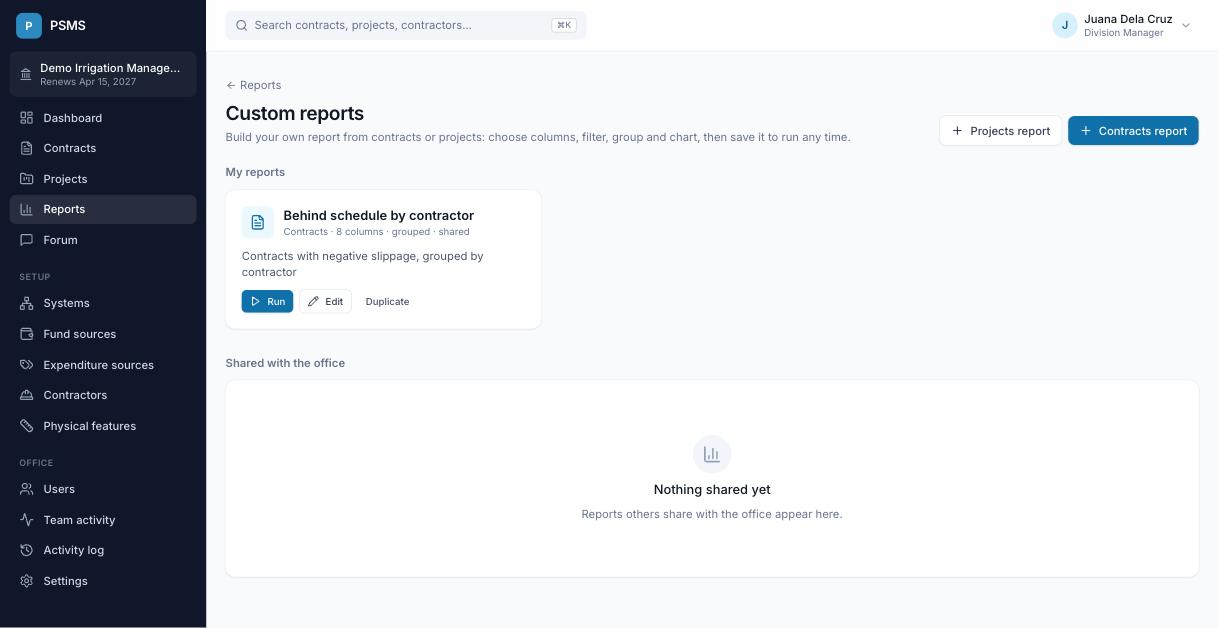
Building a report
Click Contracts report or Projects report. The preview on the right updates as you change anything.
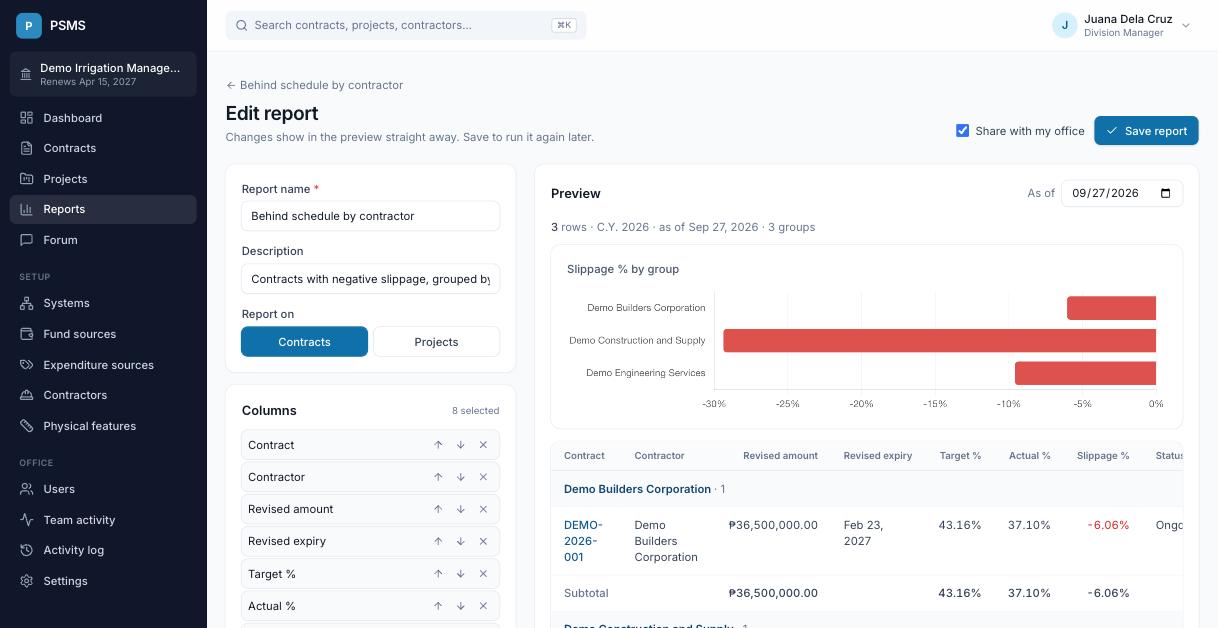
- Name the report and add a description if you like.
- Report on contracts (one row per contract) or projects (one row per project).
- Columns: add columns from the list and put them in order with the arrows. The first column links to the contract or project.
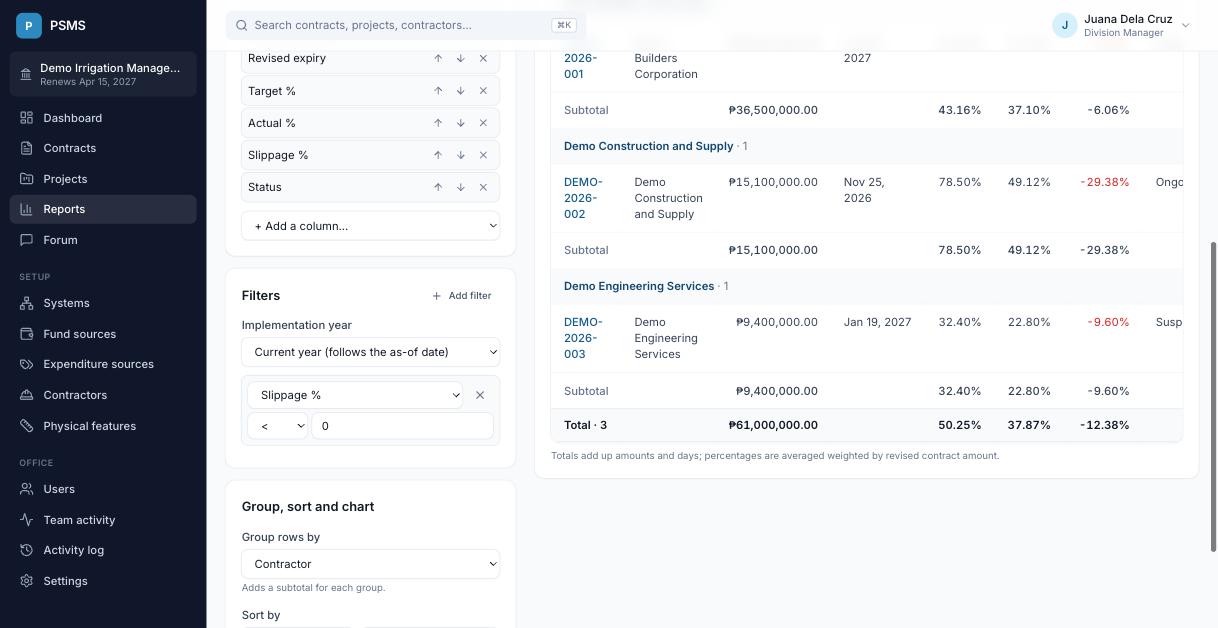
- Filters: pick the implementation year (all years, the current year or a specific year), then add as many conditions as you need. All conditions must be true for a row to appear.
- Group, sort and chart: optionally group rows (for example by contractor or fund source) to get a subtotal per group, sort by any column, and chart one number.
- Save report. Tick Share with my office if colleagues should see it.
What you can report on
| Examples of columns | |
|---|---|
| Contracts | Contract, description, status, overdue, contractor, project-in-charge, project(s), year, fund source, system, location, province; original, revised and ABC amounts; value accomplished; cost incurred and billed %; start date, duration, original and revised expiry dates, days suspended, time extensions, completion date; days elapsed, % time elapsed, target, actual, slippage, remarks; and one column per physical feature (quantity as of the date). |
| Projects | Project, year, fund source, system, location, province, description, number of contracts; allocation, obligated, disbursed, unobligated balance, utilization %, requested cash; value accomplished, target value, target, actual, slippage. |
Filter conditions
| Kind of column | Conditions |
|---|---|
| Text (contractor, status, location…) | contains, doesn't contain, is, is not, is empty, is not empty |
| Numbers, amounts and percentages | <, ≤, >, ≥, = |
| Dates | before, after, on, is empty, is set |
| Yes/no (overdue) | is yes, is no |
Examples: Slippage % < 0 (behind schedule), Status is Suspended, Revised expiry before 2026-12-31, Fund source contains GAA, Overdue is yes.
Running a report
Click Run on a saved report. Change the implementation year or as-of date and click Run again; the saved report itself isn't changed.
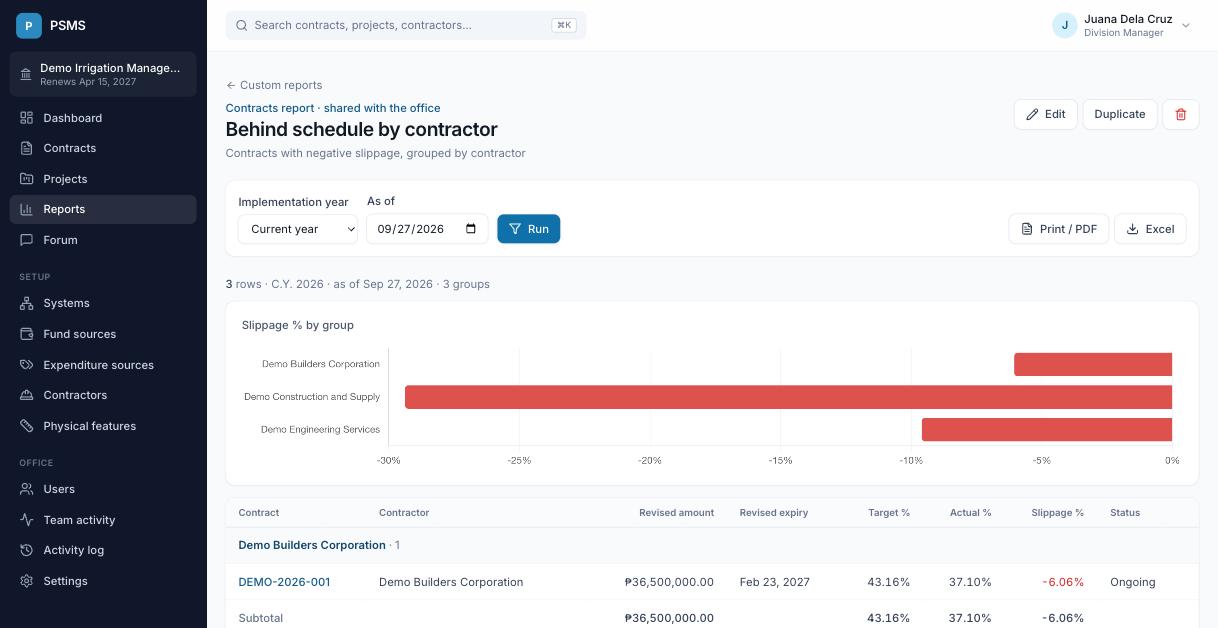
- Excel downloads the report with the same columns, group subtotals and totals.
- Print / PDF opens a landscape print layout with the office name, as-of date and page numbers. Choose Save as PDF in the print dialog to make a PDF.
Totals
The Total row, and each group's Subtotal, add up amounts, quantities and days. Percentages are averaged weighted by amount (revised contract amount for contracts, allocation for projects), so a ₱36M contract counts more than a ₱1M one. That's the same way PSMS calculates overall accomplishment elsewhere. See How the numbers are calculated.
Sharing, editing and copying
- A report is private until you tick Share with my office. Shared reports appear under Shared with the office for everyone in your office. Other offices never see them.
- Only the author can edit or delete a report. For shared reports, Account Holders can too.
- Duplicate makes your own private copy of any report you can see, ready to change.
- Custom reports only read data; building or running one never changes anything.
Which contracts are included
Like the standard contract reports, custom contract reports include contracts that have a contractor and leave out work done by administration.