Appearance
Users and team activity
These pages are under Office in the sidebar and are for Account Holders.
Users
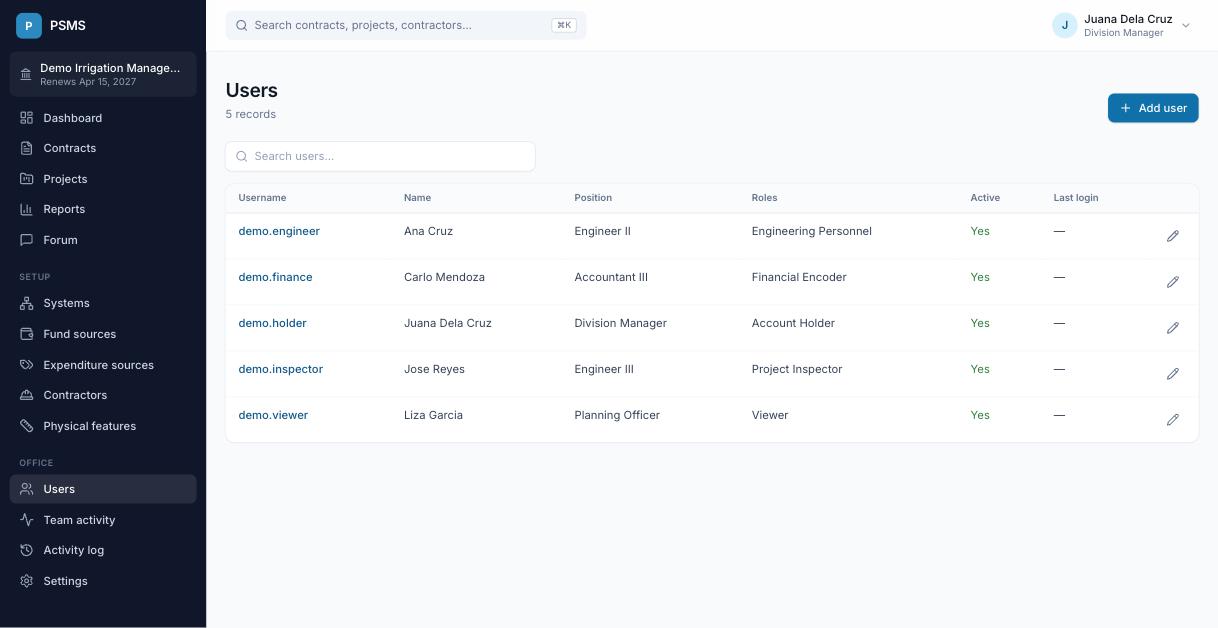
Office → Users lists everyone in your office with their position, roles, whether they're active, and their last sign-in. Click a username to see their activity.
Adding a user
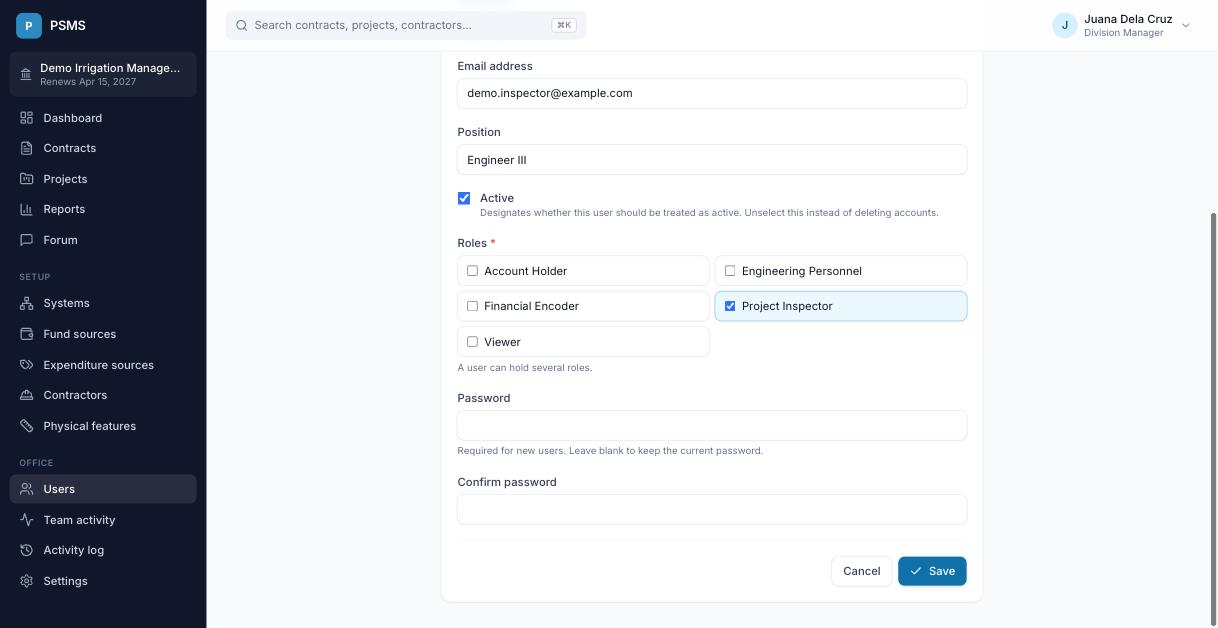
Click Add user and enter a username, name, email, position, one or more roles and a password. Give the user their username and password; they can change the password after signing in. Add their email too: it's how they can reset a forgotten password themselves.
Editing a user
Click the pencil icon to change details or roles, or to set a new password (for example when someone forgets theirs). Leave the password fields blank to keep the current one.
Removing a user
Untick Active instead of deleting. The user can no longer sign in, but everything they recorded keeps their name. You can't deactivate yourself.
Team activity
Office → Team activity shows a calendar for each person: one square per day, darker for busier days, over the last 12 months or a chosen year. All rows use the same shading, so you can compare people. People with no activity in the period are listed at the bottom.
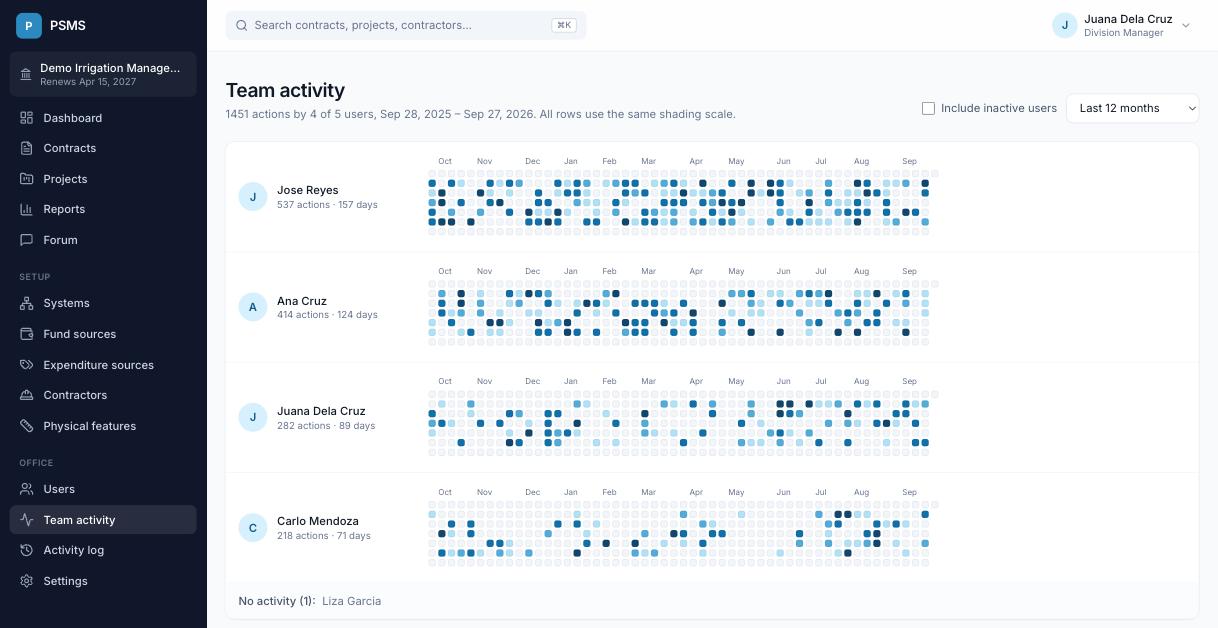
"Activity" counts entries, edits and deletions. Sign-ins are counted separately and don't make a day look busy.
A person's activity
Click a name (in Team activity or Users) to see their calendar with active days, busiest day, longest and current streak, sign-ins, and what kinds of changes they made. Click a day to see exactly what they did that day.
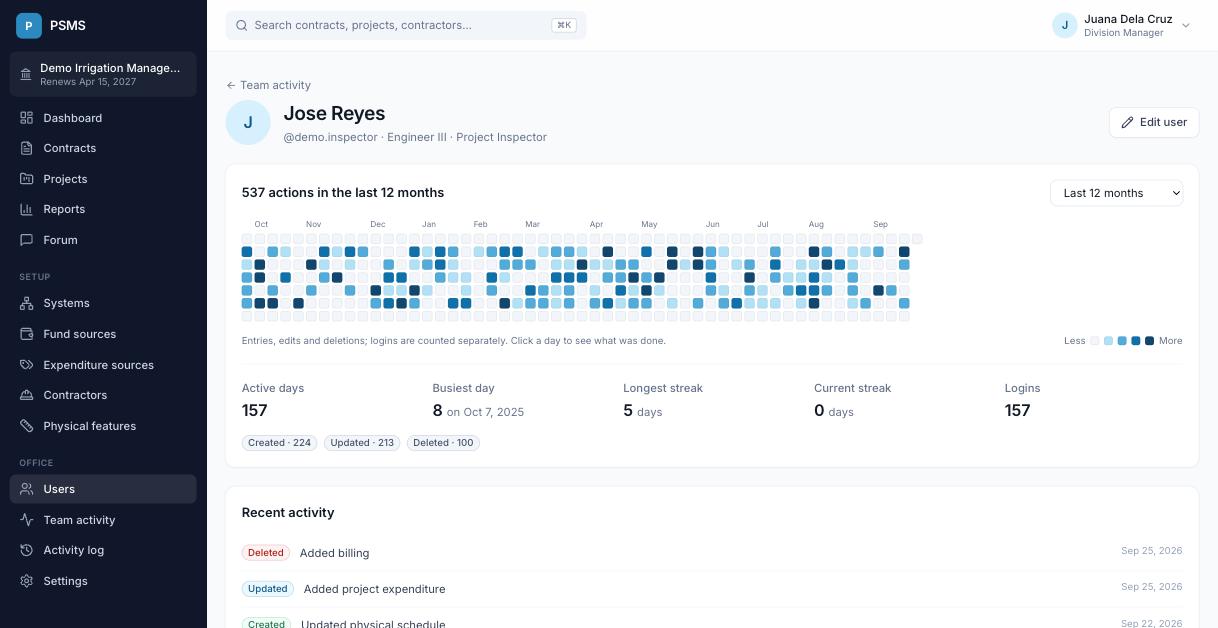
Everyone can see their own activity from the menu under their name → My activity. Only Account Holders can see other people's.
Activity log
Office → Activity log is the complete record of who changed what and when, including sign-ins, with the old and new values for edits. Filter by person or type of action, or search.